✏️2022/11/13
【Leaflet】Popupで複数の画像を表示する
LeafletのPopupで複数の画像をスライド形式で表示させる機能を目指します.
このサイトの全日本なんでもグルメに実装されているようなものです.
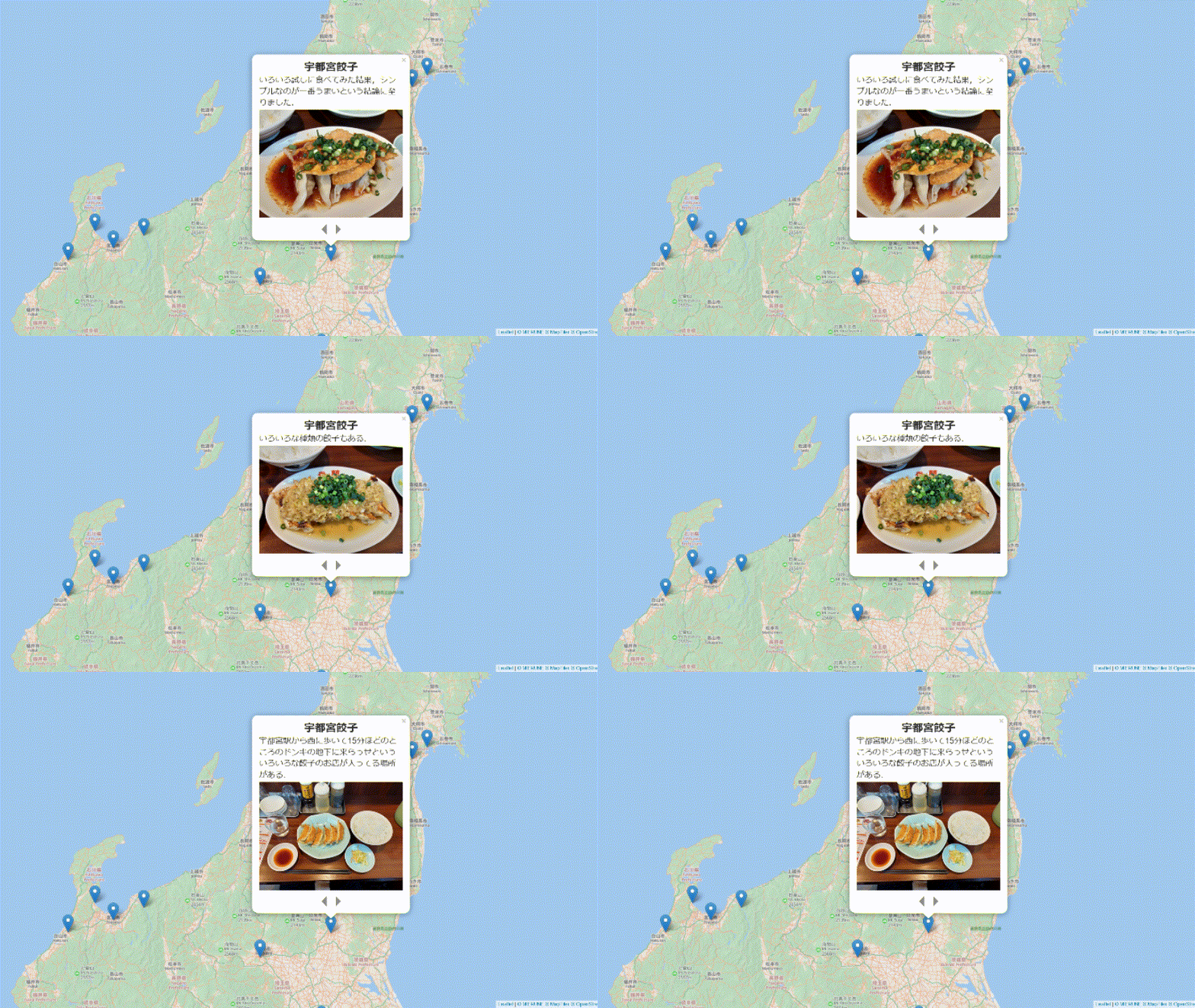
デモ
下の手順を踏んでコードをコピー&ペーストすると次のような地図を爆速で作れます.
手順
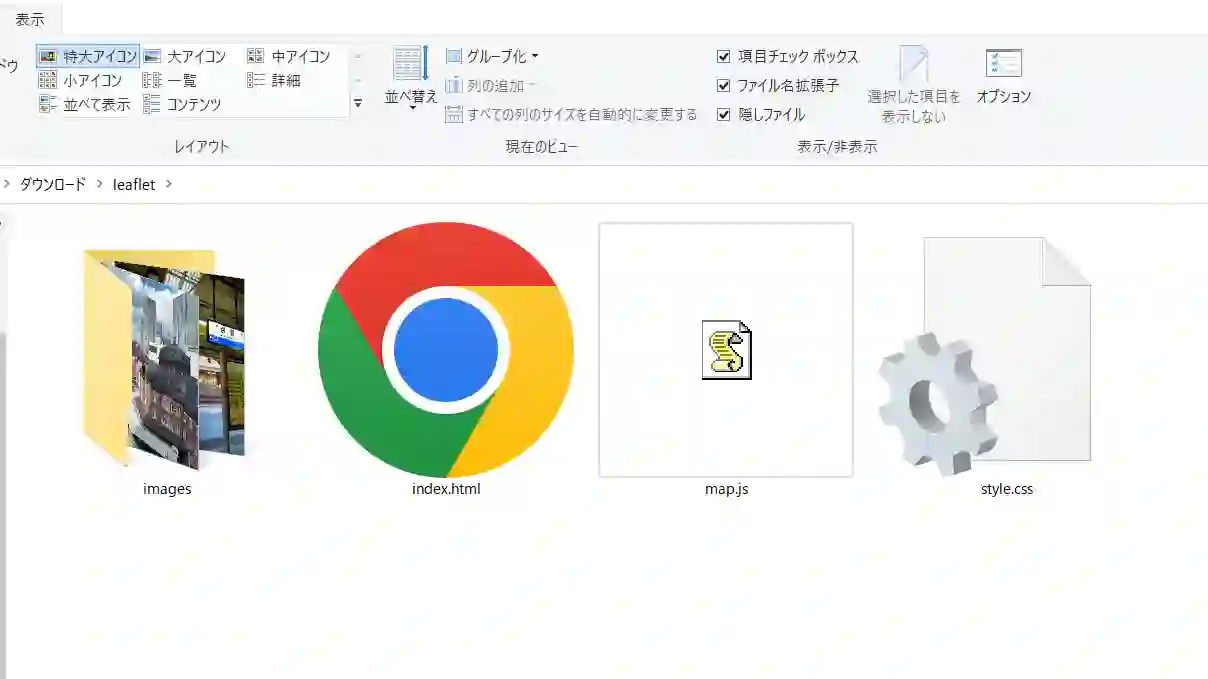
まず,適当なフォルダの中に,index.html,style.css,map.js,imagesフォルダを用意します.
imagesフォルダの中には,適当な画像を入れておきます.
index.htmlの中身
index.htmlは次のように書きます.
<!DOCTYPE html>
<html lang="ja">
<head>
    <meta charset="UTF-8">
    <meta http-equiv="X-UA-Compatible" content="IE=edge">
    <meta name="viewport" content="width=device-width, initial-scale=1.0">
    <title>Leaflet popupのデモ</title>
    <style>html, body {width: 100%;height: 100%;margin: 0;padding: 0;}</style>
    <style>#map {position:absolute;top:0;bottom:0;right:0;left:0;}</style>
    <link rel="stylesheet" href="https://unpkg.com/leaflet@1.9.2/dist/leaflet.css"
    integrity="sha256-sA+zWATbFveLLNqWO2gtiw3HL/lh1giY/Inf1BJ0z14="
    crossorigin=""/>
    <link rel="stylesheet" href="style.css">
    <!-- Make sure you put this AFTER Leaflet's CSS -->
    <script src="https://unpkg.com/leaflet@1.9.2/dist/leaflet.js"
        integrity="sha256-o9N1jGDZrf5tS+Ft4gbIK7mYMipq9lqpVJ91xHSyKhg="
        crossorigin=""></script>
</head>
<body>
    <div id="map"></div>
    <script src="map.js"></script>
</body>
</html>
style.cssの中身
style.cssは次のように書きます.ただし,ここに書いてあるのはあくまで一例ですので,お好みに合わせて調整してください.
html {font-size: 62.5%;}

.leaflet-popup-content-wrapper {
    width: 35rem
}

.leaflet-popup-content {
    width: 92% !important;
    margin: 1rem auto;
}

h1 {
    font-size:2.4rem ;
    text-align: center;
    padding: 0 0;
    margin-bottom: 0px;
    margin-top: 0%;
}

.leaflet-popup-content p {
    font-size: 1.8rem;
    margin: 1rem;
}

#box {
    margin: 3%;
    text-align: center;
}

.arrow-right{
    display: inline-block;
    text-align : center;
    cursor: pointer;
    border-style: solid;

    border-width: 12px 0 12px 12px;
    border-color: transparent transparent transparent rgb(141, 141, 141);
    margin-left: 10px;
}

.arrow-left{
    display: inline-block;
    text-align : center;
    cursor: pointer;
    border-style: solid;

    border-width: 12px 12px 12px 0;
    border-color: transparent rgb(141, 141, 141) transparent transparent;
    margin-right: 10px;
}

.slide {
    text-align : center;
    margin-top: 3px;
    margin-bottom: 2px;
    background-size: cover;
    background-position: center;
    background-repeat: no-repeat;
    width: 100%;
}

img {
    width: 100%;
}

@media screen and (max-width: 770px) {
    .leaflet-popup-content-wrapper {
        width: 25rem
    }

    h1 {
        font-size: 1.4rem;
    }

    .leaflet-popup-content p {
        font-size: 1.0rem;
        margin: 0.5rem;
    }
}
map.jsの中身
map.jsは次のように書きます.ただし,ここに書いてあるのはあくまで一例ですので,お好みに合わせて調整してください. また,画像の名前はご自身でつけたものに変更してください.
const popupContents = {"features":[
    {
    "latlng": [35.68128928354686, 139.76707328147359],//マーカーの緯度経度
    "image": ["images/tokyost1.jpg","images/tokyost2.jpg"],//画像へのパスを書く
    "txt": ["<h1>東京駅</h1><p>自分の好きな文章1を入れる.</p>",//1枚目の写真の上に表示する文
            "<h1>東京駅</h1><p>自分の好きな文章2を入れる.</p>",]//2枚目の写真の上に表示する文
    },
    {
    "latlng": [34.98584588830373, 135.75859916103386],
    "image": ["images/kyotost.jpg"],
    "txt": ["<h1>京都駅</h1><p>京都駅の写真です.</p>"]
    }
]}

var map = L.map(
    'map',
    {
        center: [35.52012022113081, 137.7649439601935],
        crs: L.CRS.EPSG3857,
        zoom: 7,
        zoomControl: false,
        preferCanvas: false,
        doubleClickZoom: false
    }
);
L.tileLayer('https://{s}.tile.openstreetmap.org/{z}/{x}/{y}.png',{
    attribution: 'Map data © <a href="http://openstreetmap.org">OpenStreetMap</a>',
}).addTo(map);

var myFeatureGroup = L.featureGroup().addTo(map).on("click", groupClick);
var marker;
for (let i = 0; i < popupContents.features.length; i ++) {//マーカーの数だけループ
    const image = popupContents.features[i].image;//写真までのパスの配列
    const txt = popupContents.features[i].txt;//テキストの配列
    const length = image.length;//写真の数
    const latLng = popupContents.features[i].latlng;//マーカーの緯度経度
    var contents = ``;
    for (let j=0; j<length; j++){//写真の数だけループ
        if(j==0){
            contents += `<div id="content${j}" style="display:block">`
        }else{
            contents += `<div id="content${j}" style="display:none">`
        }
        contents += `<div class="text">${txt[j]}</div>`
        contents += `<div class="slide"><img src="${image[j]}"/></div>`
        contents += `</div>`
    }
    if(length != 1) {
        contents += `<div id="box"><div id="arrow-left${i}" class="arrow-left"></div>
                    <div id="arrow-right${i}" class="arrow-right"></div></div>`;
    }
    marker = L.marker(latLng).addTo(myFeatureGroup).bindPopup(contents,{autoClose:true});
    marker.length = length;
    marker.number = i;
}

function groupClick(event) {
    const length = event.layer.length;
    const number = event.layer.number;
    var current = 0;
    if(length != 1) {
        var arrowRight = document.getElementById(`arrow-right${number}`);
        var arrowLeft = document.getElementById(`arrow-left${number}`);

        arrowRight.addEventListener('click', function() {
            document.getElementById(`content${current}`).style.display = 'none';
            if(current === length - 1){
                current = -1;
            }
            current++;
            document.getElementById(`content${current}`).style.display = 'block';
        })

        arrowLeft.addEventListener('click', function() {
            document.getElementById(`content${current}`).style.display = 'none';
            if(current === 0){
                current = length;
            }
            current--;
            document.getElementById(`content${current}`).style.display = 'block';
        })
}}
コードの説明
- PopupにはHTMLで書かれたテキストを挿入できます.マーカーと写真のdiv要素ごとにそれぞれ固有のidを付与して,矢印ボタンが押されるたびに 表示するdiv要素を切り替えています.
- 写真が一枚しかないときは矢印を表示させないようにしています.
使い方
- コピー&ペーストできたら,ブラウザでindex.htmlを開いてみてください.
- map.jsの一番最初のpopupContentsというJavaScriptオブジェクトに緯度経度や写真,文章を追加できます.
- 初期の緯度経度やzoomレベルなどは,map.jsのmapという変数を定義している箇所で調整できます.
- 文字の大きさやフォント,矢印のデザインなどは,style.cssを書き換えることで修正できます.
- 旅行記や紅葉マップとかを自分用にまとめたりネットに公開したりするときに使えると思います.
誰か一人の役にたてたらそれで満足なのです!